How to Make a Transparent Sticker (PNG) for LINE
Learn what a transparent sticker is, how to remove the background with AI in seconds, and how to use the finished PNG — from LINE sticker submission to personal-use stamps.
Table of Contents
What Is a 'Transparent Sticker'?
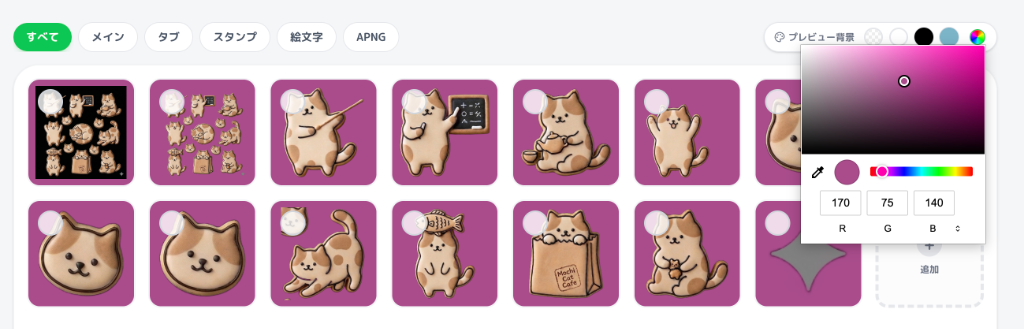
A transparent sticker is a PNG image with a fully transparent background. Unlike a plain photo or illustration, it has no white or solid-color box around the subject, so it blends naturally into any chat background.
LINE requires this transparency for sticker submissions — a leftover background is one of the most common reasons a submission gets rejected.


How to Make One: 3 Simple Steps
With EzStampify, removing the background is just a click away.
1. Upload your image — illustrations, photos, or AI-generated art all work.
2. Run AI background removal — the AI detects the subject and clears the background instantly, handling fine details like hair cleanly.
3. Download as a transparent PNG — that's it, your sticker is ready.
AI works best when the subject and background have clear contrast.
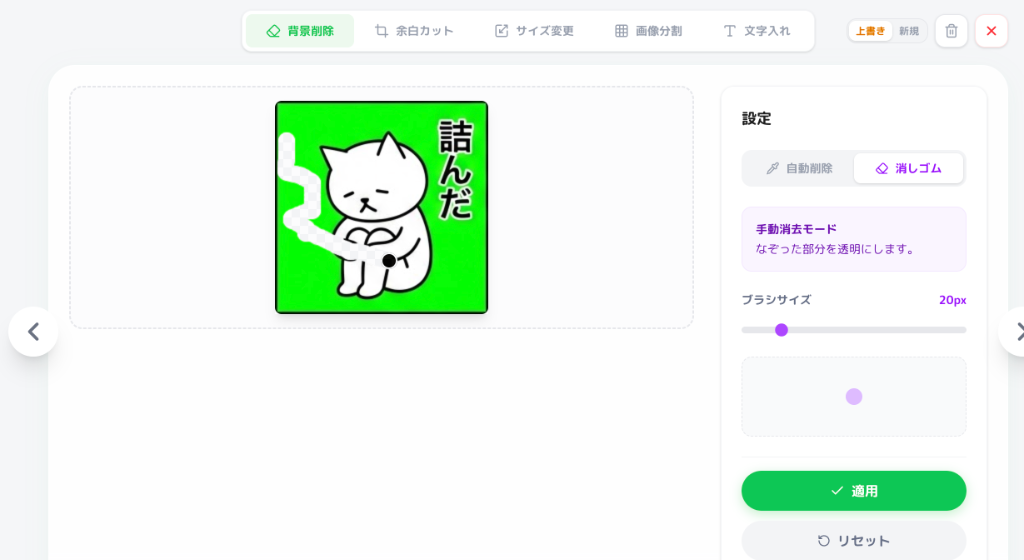
If your image already has a solid-color background (like a green screen), chroma key removal can be even faster than AI. Any leftover bits can be cleaned up individually with the eraser tool. For a deeper comparison of all methods, see our full background removal guide.

What Can You Do With It?
A transparent sticker isn't just for official LINE sticker sets.
- Submit it as a LINE sticker set — see our complete LINE sticker guide for the full submission workflow.
- Use it as a private, personal sticker — set it to 'private' and use it only in your own chats.
- Use it for profile pictures or social posts — since the background is transparent, it fits cleanly on any color.
- Composite it into other designs — transparent PNGs are easy to layer into thumbnails or collages.
Common Pitfalls
Backgrounds turning white unexpectedly, or jagged edges around the subject, are common beginner issues — usually caused by the file format or compression during upload.
Small leftover bits can be cleared with EzStampify's eraser tool — just trace over the spot to make it transparent.
See our transparency troubleshooting guide for fixes.