How to Create LINE Stickers with Ibis Paint & CLIP STUDIO
A technical guide for artists on handling safety margins, resolutions, and batch processing to avoid common errors.
Table of Contents
Introduction
"Drawing illustrations is fun, but the submission process is a burden..."
"I thought the size was right, but it was rejected for the 10px margin rule."
"I saved it as a transparent PNG, but the background looks incorrect."
If you have experienced these issues, let's solve them efficiently using EzStampify.
Common Causes for Rejection
While the review process is faster now, rejections due to "format issues" are still common. Here are two critical points:
① The '10px Margin Rule' Drawing right up to the edges of the 370x320px canvas may lead to rejection. Use the 'Auto Padding' setting in EzStampify to create the correct margins automatically.
② Transparency and Artifacts Unpainted areas or tiny leftover pixels can ruin the look in Dark Mode. Use 'Background Removal (AI)' to cleanly process edges and remove microscopic artifacts.
Recommended App Settings
For ibis Paint Users
- Draw Large: Drawing at 2x size (740x640px) ensures better line quality when scaled down.
- Saving: Always use 'Save as Transparent PNG'.
- Layer Tip: Use an opaque white background while coloring to spot leaks, then hide it before saving.
For CLIP STUDIO PAINT Users
- Vector Layers: Use vector layers for lineart to maintain quality.
- Hide Paper Layer: Ensure the 'Paper' layer is hidden during export.
- Exporting: Use 'RGBA (Color)' for .png exports.
Efficient Finishing with EzStampify
Let's streamline the finishing process so you can focus on your creativity!
Batch Processing & Management
Upload up to 40 images instantly. Different canvas sizes are handled automatically.
Use 'Gallery Management' to organize or apply tools to specific batches efficiently.
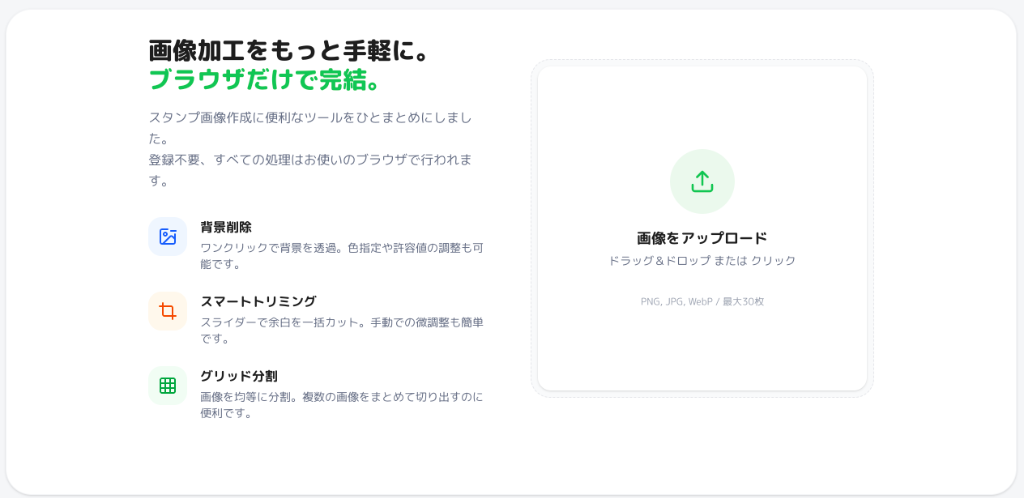
Automatic Resizing & 10px Padding
The 'Sticker (370x320)' preset automatically scales your art and adds the required margins to every file.
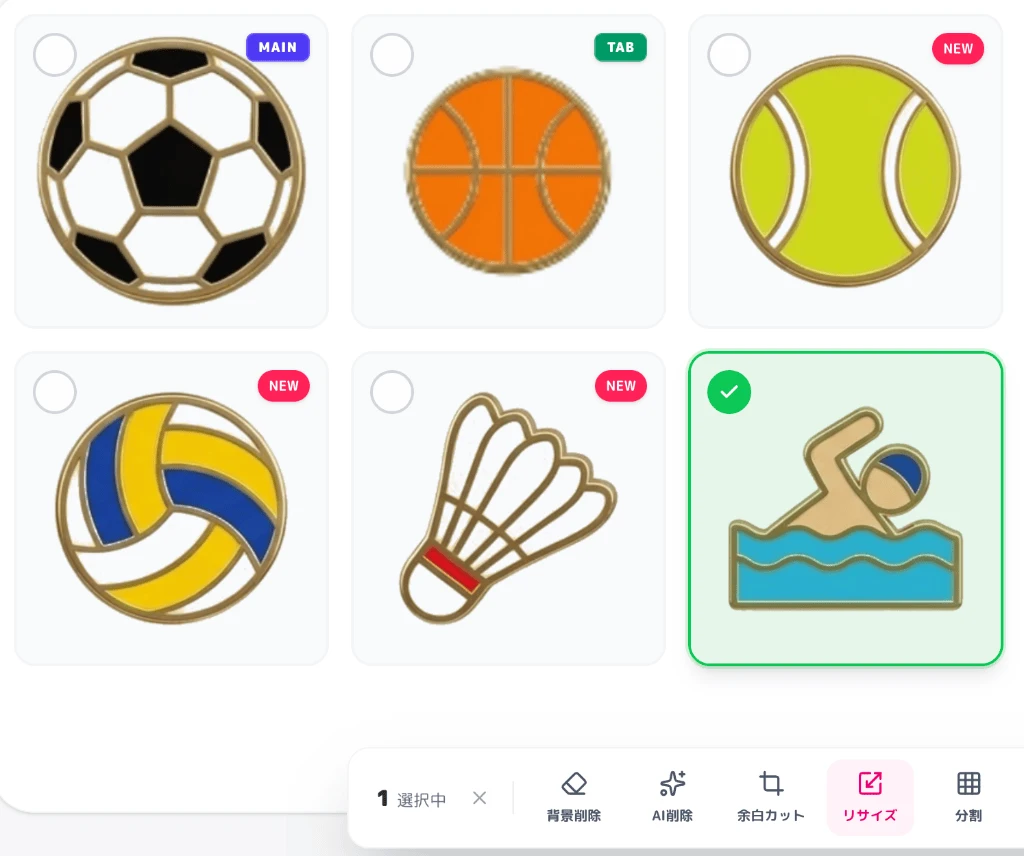
Generating Main & Tab Images
Select your image and use the preset to generate the required 'Main' and 'Tab' sizes instantly.
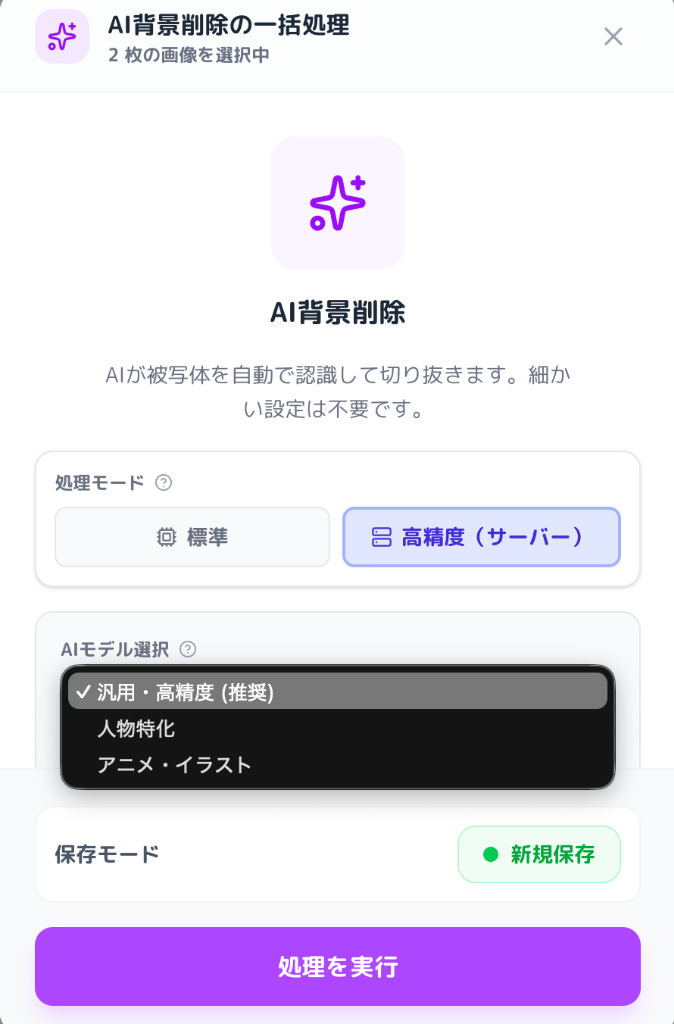
Fixing Transparency with AI
If you forget to transparentize, the 'AI Background Removal' tool can fix it directly in your browser.
Advanced Features: Image Splitting & APNG
① Image Splitting Automatically extract multiple characters from a single large canvas.
② Animated Stickers (APNG) Combine frame sequences into an APNG format with simple controls.
Final Checklist
- [ ] Paint Check: Are 'white' areas actually painted white (not transparent)?
- [ ] Count Check: Do you have exactly 8, 16, 24, 32, or 40 images?
- [ ] Readability Check: Is text legible on small screens?
- [ ] Main & Tab Images: Are all required sizes ready?
Wrapping Up
Focus on your ideas, and let EzStampify handle the technical details. Good luck with your stickers!